Automatically open certain sites in a private window on Mac
To automatically open certain sites in a private window on Mac, make Switchman your default browser and save a website rule to a browser's Incognito, InPrivate or Private destination. Private-window targets and rules are part of Switchman's free routing core. This applies to external web links delivered to Switchman, not every navigation inside your browser.
A private destination can be useful for opening a shared page without using your ordinary browser session. Start with a harmless test page, not a sensitive URL. There is an important limit: if Switchman cannot open the requested private window, it opens an ordinary window and shows a notice. This is convenience routing, not a fail-closed privacy boundary.
What macOS and browsers can do on their own
Browsers have commands for opening a private window manually. For an occasional link, open that window yourself and paste the address there. That avoids installing a router and lets you check the browser's private-mode indicator before visiting the page.
macOS has a default-browser setting, but no system-wide “open this URL privately” handoff. The setting selects an application, not a site's normal or private destination. A browser may have its own startup preferences; those are separate from choosing private mode for selected external links while leaving other links alone.
Switchman adds that per-link decision. A website rule can use a private target, while another rule uses an ordinary window or a different browser. It asks the browser to open the link privately; it does not provide a separate browsing engine or redefine what that browser's private mode protects.
Which private-window targets are recognized?
Switchman uses an explicit browser list rather than assuming every Chromium-based application supports the same private launch commands. The current list recognizes these destinations:
- Chromium family: Google Chrome, Chrome Canary, Chromium, Microsoft Edge, Brave, Brave Beta and Vivaldi. The labels are Incognito for these browsers except Edge, which uses InPrivate.
- Firefox: Firefox and Firefox Developer Edition, with a Private destination.
- Safari: Safari and Safari Technology Preview are listed as private-capable. However, the current Safari opening script addresses Safari itself, even for the Technology Preview entry. Do not rely on that entry to keep a link in Technology Preview.
Chrome Beta and Dev, Edge Beta, Dev and Canary, Brave Nightly, Vivaldi Snapshot and Arc are not in the private-target list. Some of those browsers are supported for profiles or Spaces; that is a different feature. A missing private entry means Switchman does not currently offer that browser as a private destination, not necessarily that the browser lacks private browsing.
Set up an automatic private-window rule
- Install Switchman and make it the default browser. It runs on macOS 13 or later. Keep your chosen browser installed. Links must be handed to Switchman for its rules to apply; an app that explicitly launches another browser can bypass them.
- Find the private destination. Open Applications settings and look for the browser's separate Incognito, InPrivate or Private entry. If it is hidden, unhide it. The ordinary browser entry and its private entry are separate targets, so selecting just the browser name is not enough.
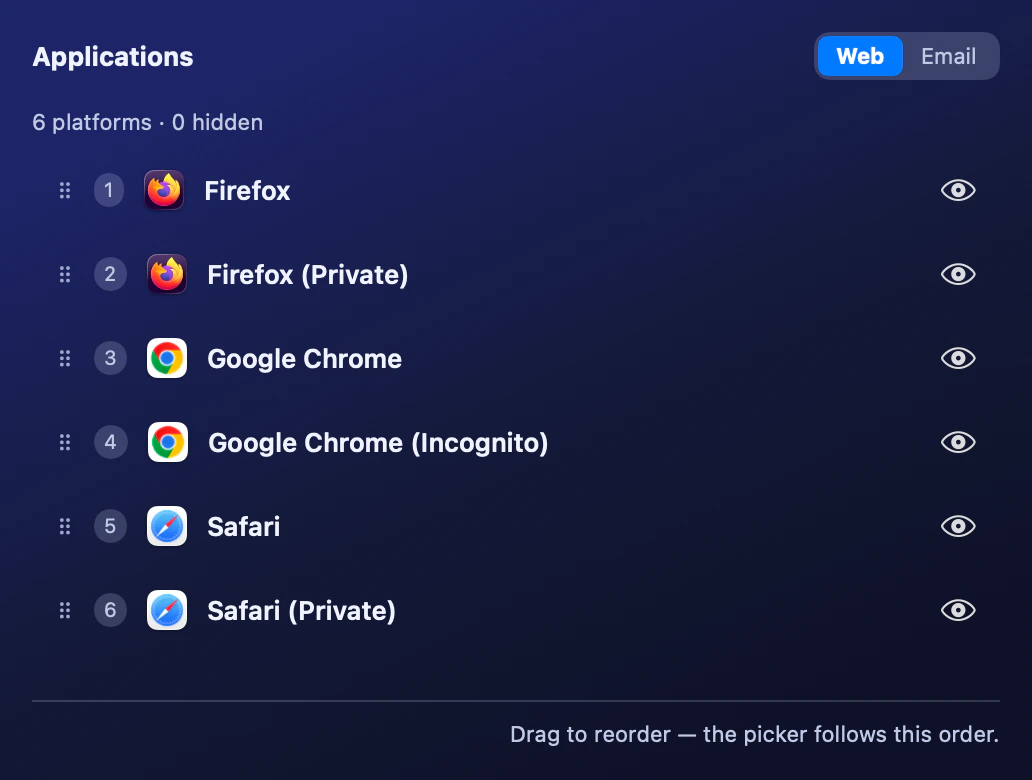
Each browser’s private mode is its own destination in Applications, listed beside the ordinary browser. Choose the private entry for a private-window rule. - Add a website rule. In Rules, enter a hostname and choose the private destination. Check whether subdomains should be included. If you paste a specific page address, choose Whole site for the domain or Just this page for that exact address.
- Use a source condition when it helps. Select a running source app in the rule options to limit the website rule to links from it. Leave the Website field empty with a source selected only if every web link from that app should use the private destination.
- Grant the permissions your browser needs. Running Chromium-family browsers use Automation. Safari's private-window route also requires Accessibility because it sends the private-window keyboard shortcut through System Events. Firefox uses its private-window launch argument instead.
- Test both private and ordinary routes. Click a matching test link in another app and confirm the browser's private-mode indicator. Then try a link that should remain ordinary. Also test while the browser is already open, because some private-opening paths differ between a running browser and a fresh launch.
Keep the rule narrower than the word “always”
A domain rule can cover that hostname alone or include its subdomains. An exact-address rule applies to one normalized URL; a different path or query can fall outside it. A source-only rule applies to every HTTP or HTTPS link received from the named app, so it may send more sites into private mode than intended.
More specific URL rules win over a source-only catch-all. An existing exact-address rule to an ordinary browser can therefore override a broader private-domain rule. Inspect overlapping rules if your test does not follow the destination you expected.
A source condition is not a strict boundary either. Switchman identifies the clicking app from the frontmost application when the URL arrives. On a cold start, especially the first link after a reboot, a usable source may be unavailable. A domain-only rule avoids relying on that source information.
Permissions, failures and privacy limits
For a running Chromium-family browser, Switchman scripts a new incognito window instead of relying only on a launch flag. Firefox receives the private-window argument. Safari is activated, receives the private-window shortcut, and then has the new window's address set. Permission refusal or a browser scripting change can make those operations fail.
Review Automation and, for Safari, Accessibility in System Settings under Privacy & Security. If Switchman says Accessibility was granted to a different build, remove the old permission entry and add the current installed app again. Do not assume that a visible enabled switch proves the current build has access.
The failure notice matters. “Opened without private browsing” means the link went to an ordinary window; it is not a private visit with a cosmetic warning. If opening a URL ordinarily would be unacceptable, use a manually verified private window instead of depending on automatic routing.
Private browsing is not anonymity. It does not hide activity from the website you visit or make an account you sign into anonymous. Switchman controls the destination request, not the browser's storage policy, network connection or website behavior. Check your browser's own private-browsing explanation for those boundaries.
FAQ
Do private-window rules require Switchman Pro?
No. Private-window targets and rules are part of the free routing core. Chromium profile targets and Arc Space targets are separate Pro features.
Can I use Incognito for a specific work profile?
Not as a combined Switchman target. A Chromium profile and a private window are separate destination variants; Switchman does not offer a profile-plus-Incognito destination.
What happens if a private window cannot open?
Switchman opens the link in an ordinary browser window and shows an Opened without private browsing notice. It does not block the URL, so do not treat the rule as a fail-closed privacy guarantee.
Will links clicked inside a browser always follow this rule?
No. The rule applies when the web link is delivered to Switchman. Ordinary navigation inside an existing browser tab does not necessarily go through the macOS default-browser handoff.
Related guides
- Choose a browser for each link
- Open links in a specific Edge profile
- Remove tracking parameters from links
Switchman is free for its routing core. See what Pro adds or return to the Mac browser chooser homepage.