Choose a browser for each link on Mac
To make your Mac ask which browser should open a link, set Switchman as the default browser and choose “Ask every time” in its menu bar menu. External links without a matching rule show a browser picker at your pointer. Click a browser or use the keyboard to open the link there.
This is useful when the right browser depends on the moment rather than the website. A document might belong in your work browser today and a personal session tomorrow. Switchman’s classic picker and ordinary browser rules are free on macOS 13 or later; you do not need Pro just to choose where a link opens.
Set up a browser picker
- Install Switchman. Open it and make it your default web browser. That sends ordinary external web links to the chooser rather than directly to Safari, Chrome or another browser.
- Choose “Ask every time” from the menu bar menu. Asking is the default on a fresh setup. This controls links that have not already matched a rule.
- Check Settings → Applications. Keep the browsers you want visible and arrange their order. The first nine picker rows get number shortcuts in that order.
- Click a web link in another app. Use Mail, Notes or a chat app that opens links through the system default. Pick the browser you want without holding Command to make a one-off choice.
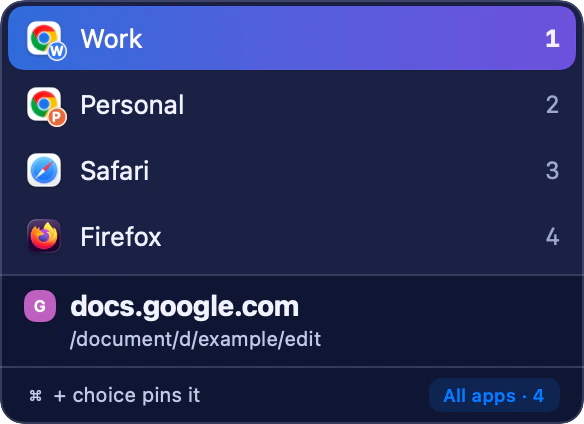
The classic picker offers a one-off choice. Here the Chrome icons identify Work and Personal; named Profiles require Pro. - Review existing rules if you want every link to ask. Matching rules still open their destination automatically. Remove rules you no longer want rather than expecting “Ask every time” to override them.
The picker is presented at the current pointer location. The free presentation is a classic list. Pro adds Ring, a radial presentation at the pointer, but both serve the same basic decision: which destination should receive this link?
What macOS can and cannot do natively
macOS can assign one application as the default browser. It cannot, through that system setting alone, show a list of browsers for each ordinary external link. Assigning Chrome makes Chrome the default; it does not create an “ask me” mode.
A chooser works by becoming that default application and handing the URL to your final browser after you decide. It does not replace the browsers themselves. You still use their existing windows, accounts and settings after the link is opened.
The distinction is external links. Clicking a normal link inside a browser usually stays in that browser. Links opened in an app’s embedded view, or sent explicitly to a named browser, do not necessarily reach the system default. Switchman cannot show a picker for a URL it never receives.
Use the picker without the mouse
Press a displayed number from 1 to 9 to choose that row immediately. Up and Down move the highlight, and Return or Enter opens the highlighted destination. Tab advances through choices and Shift-Tab moves back. Escape dismisses the picker without opening the link.
The number keys are positional, not permanent browser identities. If you reorder the Applications list, the shortcuts follow the new order. Selecting a fallback browser does not reorder the list, so merely changing your default destination does not renumber your familiar choices.
Return opens the highlighted row, not necessarily row one. A saved fallback destination can determine where the highlight starts. When deciding quickly, use the number printed beside your intended browser or check the highlight before pressing Return.
Remember a site only when you mean it
Hold Command while clicking a browser in the picker to remember a rule. For web links, Switchman writes a rule for the site’s registrable domain and its subdomains, not just the exact URL you clicked. Choosing a destination for a document can therefore also settle future links elsewhere on that site.
The shortcut is deliberately different from a normal click. An ordinary choice opens this link once; Command-click turns it into an automatic route. Holding Command while choosing with a number key or Return also remembers the choice.
The remembered web rule has no source-app condition. If you want the site to use Chrome only when clicked in Slack, edit the rule’s source in Settings → Rules. If you want a narrower exact-address decision, create it in the editor rather than using the site-wide picker shortcut.
Ask for unmatched links, or use one fallback
You do not have to choose between a prompt for everything and a single browser for everything. Rules run first. For remaining links, the menu bar menu offers “Ask every time” or a browser by name. Choosing a browser there stops asking and makes it the fallback destination.
This works well after your regular work sites have rules: those sites go straight to their destinations, while everything else opens in your chosen browser. Switch back to “Ask every time” whenever the occasional extra decision is more useful than speed.
With asking off, holding Option as you click an external link requests a picker for an otherwise unmatched link. This is not a bypass for matching rules. It also depends on the source app leaving Option-click alone; some apps use that gesture for their own action, so no link reaches Switchman.
Why the picker did not appear, or appeared unexpectedly
If a link opens directly, check for a matching rule and then the menu bar mode. Next check that Switchman is still the system default and that the source app is not using an internal browser. Those are different causes with different fixes.
A rule pointing to an uninstalled browser is skipped; another applicable rule may still match. An unavailable fallback is resolved against the usable picker entries. Keep the browsers you actually want visible, rather than relying on a removed destination.
Safety warnings are a separate reason to see the picker. Free address-shape checks run before rules and fallback routing. A suspicious link shows an explanation and asks you to choose even if ordinary links open automatically. This is a warning, not blocking and not a guarantee that unflagged links are safe.
FAQ
Does “Ask every time” override my saved rules?
No. Matching rules are applied before the unmatched-link mode. To choose a browser for every ordinary external web link, use “Ask every time” and remove rules that would route those links automatically.
Can I use the browser picker for free?
Yes. The classic picker, keyboard shortcuts and ordinary browser rules are free. Ring is a Pro presentation option; Pro costs $9.90 once.
How do I cancel without opening the link?
Press Escape. The picker closes without opening that link. If more links are queued, Switchman can then ask about the next one.
What does Command-click remember?
For a web link, it remembers a site-wide browser rule including subdomains, with no source-app condition. A normal click makes a one-off choice instead.
Related guides
- Open Slack links in a different browser
- Open links in a private window
- Open links in a specific Chrome Profile
Switchman is free for its routing core. See what Pro adds or return to the Mac browser chooser homepage.