Open links in a specific Chrome profile on Mac
Send work links to your work Chrome Profile and personal links to another one, even when they come from Mail, Slack or another Mac app.
Chrome Profile routing requires Pro.
The browser picker and browser-routing rules are free.
Download free for macOS See Pro
$9.90 one-time for this generation of Pro. If Pro doesn’t work for you within 30 days, email support for a refund.
Two Chrome Profiles are useful until a link lands in the wrong one. A work document asks for your personal account, or a personal purchase opens under your company login. Switchman sits between the external app and Chrome, so a rule can name the Profile you meant, not just the browser.
Why macOS and Chrome do not choose the right Profile
macOS lets you choose a default browser, not a separate Chrome Profile for each website or source app. Making Chrome the default tells the system which application should receive web links. It does not tell Chrome whether a Slack link belongs in Work and a Mail link belongs in Personal.
Chrome normally opens external links in the last-used Profile. Switching to a personal Chrome window can therefore change where the next work link lands. Choosing a Profile inside Chrome is a manual fix for that visit, not a routing rule for future links.
With Switchman as the web-link handler, the destination can include the Profile directory. Switchman passes that choice to Chromium explicitly, including when the browser is already running. Profiles and Arc Spaces are Pro features; ordinary browser routing remains part of the free core.
Set up Chrome Profile routing
- Prepare your Profiles in Chrome. Create and use your work and personal Profiles in Chrome first. Give them recognisable names. Switchman reads the browser's existing catalogue rather than creating a second set of Profiles.
- Install Switchman and make it your web-link handler. External links need to reach Switchman before it can choose their destination. Leave Chrome installed; it is still the browser that opens the page.
- Open Applications in Switchman settings. Expand Chrome's Profile drawer to find the names Chrome has saved. Independent Profile destinations appear when the catalogue contains at least two Profiles. You do not need to import a Profile folder.
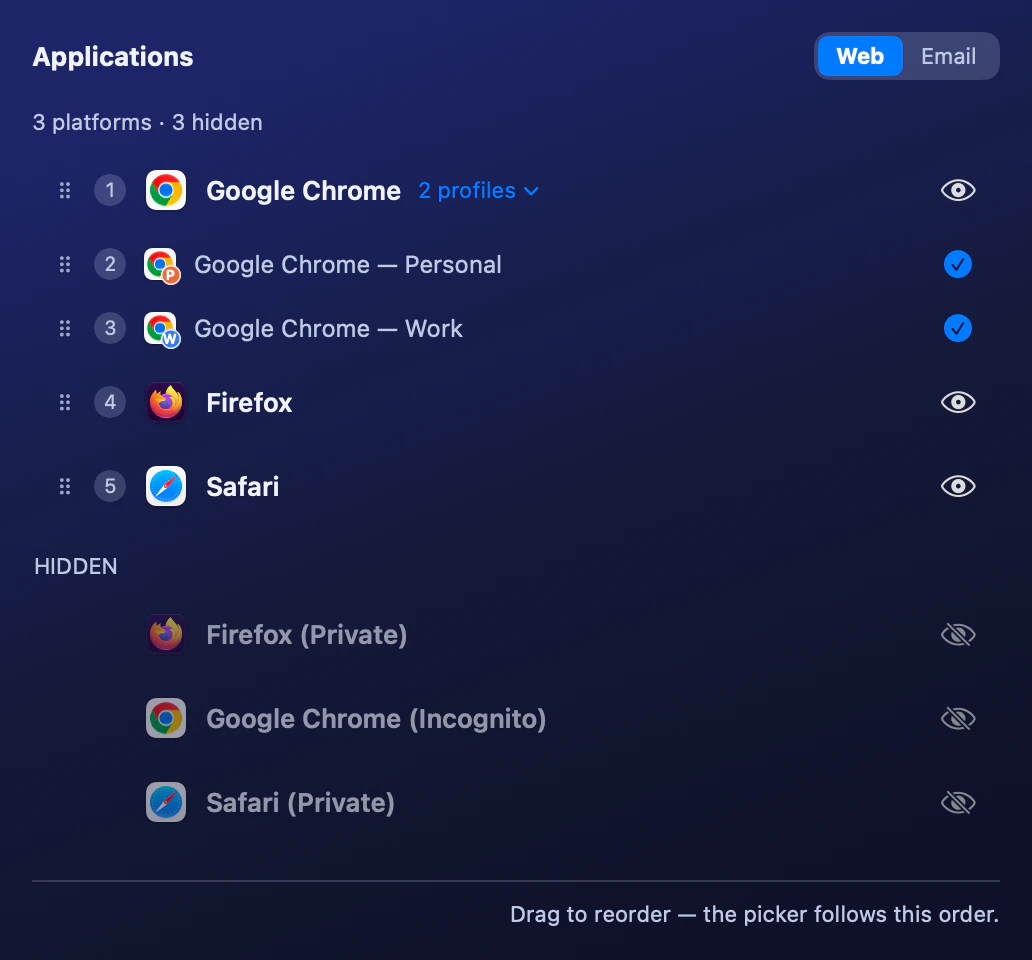
Expand Chrome to see its existing Profiles. The checks add Work and Personal to the picker. - Create a rule and choose the named Profile. Use a domain for a whole work site, an exact address for one page, or a source-app condition for links from a particular app. Choose Chrome · Work rather than the plain Google Chrome destination.
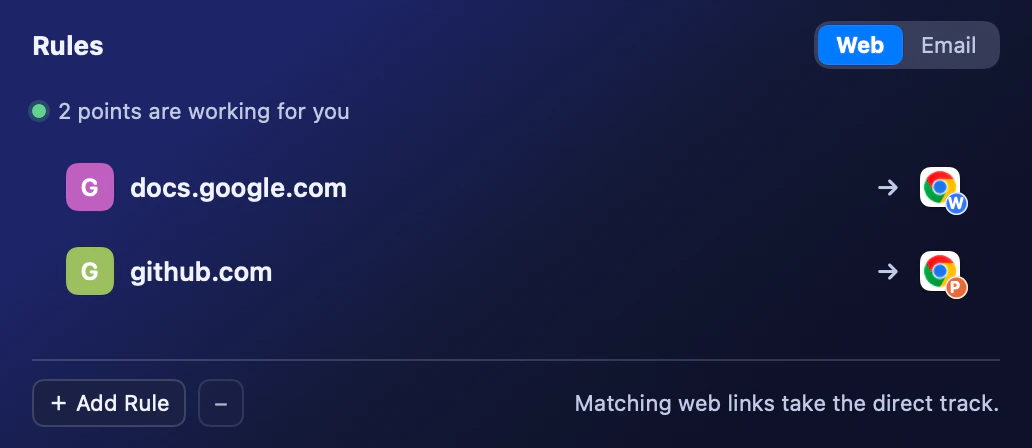
Two example rules keep Google Docs in Work and GitHub in Personal. The W and P badges identify the destinations. - Test from outside Chrome. Click a matching link in Mail, Slack or Notes. Testing in the browser's address bar does not exercise the external-link handoff. Then test a personal link too, so you know the rule is not broader than intended.
With at least one Profile selected in Applications, “Show default window” appears below Chrome even when the drawer is collapsed. Turn it off to keep only the selected Profiles in the picker. This option is free; selecting Profiles still requires Pro. Chrome’s eye hides or restores the whole picker group, preserving all selections, the default-window preference and its order slot. These picker preferences do not change explicit rule targets.
Start with one work domain you recognise. A domain rule can include its subdomains, so you do not need a separate rule for every host on that site. If an exact-address rule also matches, it takes priority over the domain rule. That is useful for exceptions, but worth checking when a destination surprises you.
Where Chrome keeps Profiles on Mac
Chrome's normal user-data folder is ~/Library/. In Finder, use Go → Go to Folder and paste that path. The tilde means your Mac user account's home folder, not a folder shared by every user on the computer.
~/Library/is the usual initial Profile directory.Application Support/ Google/ Chrome/ Default ~/Library/,Application Support/ Google/ Chrome/ Profile 1 Profile 2and similarly named folders hold additional Profiles.~/Library/contains the Profile catalogue. ItsApplication Support/ Google/ Chrome/ Local State profile.info_cacheentries associate directory keys with display names.
A folder called Profile 1 can therefore appear as Work in Chrome and Switchman. The friendly name is not the folder name. Switchman reads each catalogue entry's name and uses the directory key if that name is blank; you should not rename the directory to make it match the label.
This location is useful for understanding a missing Profile, not a request to edit Chrome's files. Create or rename Profiles in Chrome itself. Chrome Beta, Dev and Canary use their own data folders beside Google/Chrome, so a Profile created in Canary is not a Profile in stable Chrome.
Edge, Brave, Vivaldi, Chromium and Arc Spaces
The same Profile-routing approach works with Microsoft Edge, Brave, Vivaldi and Chromium. Switchman also recognises Chrome Beta, Dev and Canary; Edge Beta, Dev and Canary; Brave Beta and Nightly; and Vivaldi Snapshot. Each installed browser or channel has its own local catalogue, rather than borrowing stable Chrome's Profiles.
For Arc, the destination is a Space rather than a Chromium Profile directory. Switchman reads Arc's named Spaces from its local sidebar file and can open a link in the selected Space. Each Space Switchman finds is offered as its own entry. See the Arc Space guide or set up an Edge Profile. Both kinds of named destination require Pro.
Troubleshooting Profile routing
The link still opens in the wrong Profile
Check that Switchman is still the web-link handler and test a link from another app. Then inspect the rule's destination: plain Chrome leaves the Profile choice to Chrome; Chrome · Work names a particular Profile. Check for a more specific exact-address rule or a source-app condition that changes which rule matches.
If the selected Profile was removed, or Chrome cannot be directed to it, Switchman opens the link in the parent browser and shows a notice explaining the failed Profile handoff. Do not treat that ordinary window as proof the Profile rule succeeded. Re-select an existing Profile in the rule.
My Profile is not listed
Confirm that you created at least two Profiles in the right browser channel and that its Local State catalogue is readable. Switchman reads catalogue entries, not arbitrary folders you place beside Default. Reopen the Applications list after making changes. If a Profile exists in settings but not the ordinary picker, promote it from the browser's drawer; collapsed Profiles are still available to rules.
A source-app rule misses the first link after a reboot
macOS delivers the URL without a reliable source-app field. Switchman captures the frontmost app when the link arrives. On a cold start, that source may be unavailable: source-specific rules then do not apply, and other matching rules can take over. For a work site that must route consistently, use a domain rule without a source condition rather than relying only on the first Slack or Mail click.
Chrome Profile routing FAQ
Can I route links from Slack and Mail?
Yes. A rule can match the source app, domain or exact address. Source-app detection can miss the first link on a cold start, so use a domain rule without a source condition when that distinction matters.
Does this change my Chrome Profiles?
No. Switchman reads the Profiles that Chrome already has and opens the selected one. It does not create, rename or sync Chrome Profiles.
Can I sync these rules to another Mac?
Yes. Pro can sync Switchman rules and settings through your private iCloud database. It does not sync the browser's Profile data. Create the Profiles in Chrome on each Mac too.
Is Chrome Profile routing free?
No. Named Chromium Profiles and Arc Spaces are Pro features: $9.90 once, not a subscription, with refunds within 30 days. The ordinary browser picker and browser-routing rules are part of Switchman's free core.
Does Switchman collect data about my links or Profiles?
No. Switchman has no app telemetry and keeps no link log; your links and Profile names stay on your Mac. The few things that do use the network are listed on the privacy page.
Why is my Work Profile called Profile 1 on disk?
Profile 1 is a directory key, not the display name. Chrome's Local State file maps that key to the name shown in the browser and in Switchman.
Does this also work with Chrome Canary or Edge?
Yes. Switchman reads separate catalogues for Chrome Beta, Dev and Canary, Microsoft Edge and its Beta, Dev and Canary channels, Brave and its Beta and Nightly channels, Vivaldi and Vivaldi Snapshot, and Chromium.
Related guides
- Sync browser rules across Macs — carry your routing setup to another Mac.
- Open links in a specific Edge Profile — separate work and personal Edge destinations.
- Open Slack links in a different browser — route links by the app they came from.
Chrome Profile routing requires Pro.
The browser picker and browser-routing rules are free.
Download free for macOS See Pro
$9.90 one-time for this generation of Pro. If Pro doesn’t work for you within 30 days, email support for a refund.