Open links in a specific Arc Space on Mac
To open external links in a specific Arc Space on Mac, choose that Space as the destination of a Switchman Pro rule. Switchman reads your existing Arc Spaces, then uses AppleScript to create a tab in the selected Space when a matching web link arrives. If you only need routing within Arc, try Arc's built-in Air Traffic Control first.
The distinction matters. Choosing Arc as your default browser selects the application. Choosing a Space decides where a link belongs inside Arc. Switchman is useful when that decision is part of a larger setup: work documents in a Work Space, some sites in another browser, and undecided links in a browser picker.
What macOS and Arc can do on their own
macOS can assign Arc as the default browser, but its default-browser setting does not provide per-Space rules. Arc itself does. Its Air Traffic Control help page documents routes using URLs that contain specified text or equal an address, plus a default destination for external links.
In Arc, open Settings, then Links, then Air Traffic Control. Its Default dropdown can choose a specific Space, Most Recent Space or Little Arc. If your question is simply “how do I set Arc's default Space for external links?”, this is the direct built-in answer. You do not need Switchman for that setting.
Use Switchman when some links should not go to Arc at all, or when you want a source-app condition alongside a website rule. For example, a work domain can go to an Arc Work Space while another domain goes to Safari. Keep the rules understandable: test one Switchman route before layering it onto a complicated Arc routing setup.
Set up a Switchman rule for an Arc Space
- Prepare the Spaces in Arc. Create the Spaces you need and give them distinct titles. Switchman offers separate Space destinations when its scanner finds at least two. It reads Arc's local catalogue, so the Spaces must already exist in Arc on this Mac.
- Install Switchman and make it the default browser. Switchman runs on macOS 13 or later. It must receive the external HTTP or HTTPS link to make a routing decision. An app that opens Arc directly can bypass this route.
- Activate Switchman Pro. Space rules and adding Spaces to the picker are Pro features. Open Applications settings and expand Arc to inspect the detected Spaces. Adding a Space to the picker is optional when your goal is an automatic rule.
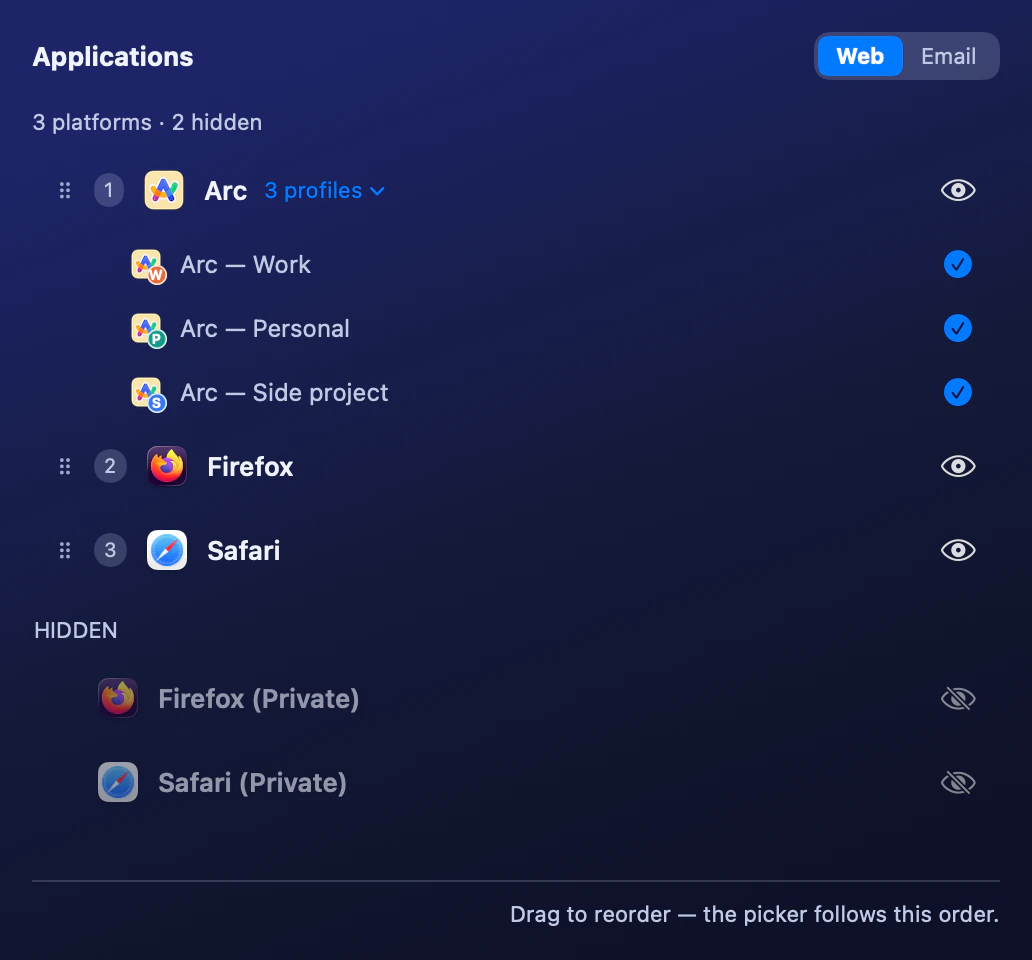
Arc’s drawer shows the fixture Spaces Work, Personal and Side project. The current interface labels this drawer “profiles.” - Create a narrow rule first. Open Rules, enter a hostname, and select the named Arc Space as the target. A domain rule can include subdomains. For a pasted page address, choose Whole site or Just this page according to whether you want the domain or only that address.
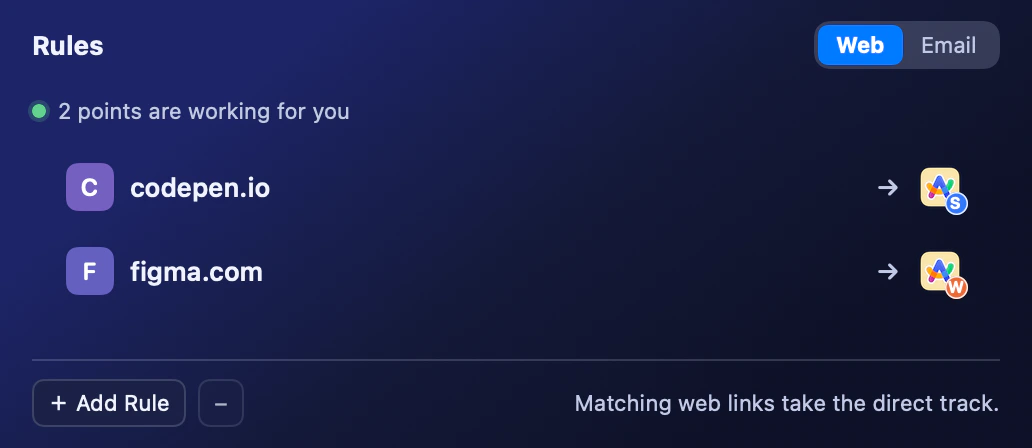
Two narrow example rules: figma.com opens in Arc’s Work Space (W) and codepen.io in Side project (S). - Add a source condition only if needed. Keep the source app running so it appears in the options. Restrict the rule to that app, or leave the Website field blank with a source selected to route every web link from it. Leave the source unrestricted for a rule that should work from any app.
- Allow Automation and test the destination. When macOS asks whether Switchman can control Arc, allow it if you want Space routing. Open a matching link from Notes, Mail or the chosen source app, and confirm that the tab appears in the intended Space. Then test an unmatched link.
How a link reaches the selected Space
Switchman reads Space identifiers and titles from Arc's StorableSidebar.json under your user Library's Application Support folder. It does not create a second Space catalogue or modify that file. It reads the browser-owned data to find the destination that your rule names.
When Arc is not running, Switchman launches it before sending the script. The script works with Arc's front window, creating a window if none exists, and requests a new tab in the selected Space. It tries the Space identifier first and then its title if Arc's scripting interface does not expose the same identifier.
This is a request to open a tab in a Space, not an import of tabs, a Space backup, or a change to Arc's own default-link preference. Switchman does not choose an Arc account independently of the Space you configured. Name the destination clearly and test its actual behavior before relying on it for account-sensitive work.
Useful rules without routing everything to Arc
A domain rule for a work service is the simplest starting point. Include subdomains only when they belong in the same destination. A rule for one hostname does not automatically cover an unrelated document host, even if the link was shared in the same conversation.
An exact-address rule can send one recurring page to a specific Space without moving the rest of that site there. A source-only rule can send all links from one app to a Work Space, but it also catches personal links clicked in that app. Combining a domain with the source condition makes that choice narrower.
Exact-address rules outrank domain rules, and domain rules outrank source-only catch-alls. For the same URL scope, a matching source condition takes precedence over an unrestricted rule. Check those overlaps if a link goes to a different destination than the newest rule suggests.
Limits and troubleshooting
If no Spaces appear, check that Arc is installed, that there are at least two Spaces, and that Arc has written its catalogue in the standard local location. Switchman needs readable identifiers and nonempty titles. A browser update that changes the file layout or scripting dictionary can break discovery or opening.
If Automation is refused, Space routing can fail. Review Switchman's permission to control Arc in System Settings under Privacy & Security, then test again. Arc Space opening uses Automation, not the Safari-private-window Accessibility path.
Deleted Spaces and failed scripts do not block the link entirely. Switchman opens it in the parent browser and shows a notice that the selected persona could not be used. Check the resulting location and update a rule that points to a removed Space. Source-app rules also have a cold-start caveat: the first link after a reboot may lack a usable source, so use a domain-only rule when source detection is not essential.
FAQ
Can I set a default Arc Space without Switchman?
Yes. Arc Air Traffic Control has a Default dropdown for external links. Choose a Space there if all you need is a default destination inside Arc.
Are Arc Space rules a Pro feature?
Yes. Saving rules to Arc Spaces and adding Space destinations to the picker require Switchman Pro. Rules targeting the Arc application without a Space are part of the free routing core.
Why does Switchman ask to control Arc?
It uses AppleScript to create a tab in the selected Space. macOS Automation permission allows that request; refusing it can prevent the selected Space from opening.
What happens if I delete the Space used by a rule?
If the saved Space cannot be found when opening the link, Switchman opens the link in the parent browser and shows a notice. Edit the rule to choose an existing Space.
Related guides
- Open links in a specific Chrome profile
- Open links in a specific Edge profile
- Choose a browser for each link
Switchman is free for its routing core. See what Pro adds or return to the Mac browser chooser homepage.