Open links in a specific Edge profile on Mac
To open links in a specific Edge profile on Mac, set Switchman as your default browser and create a rule targeting your Edge work profile. Switchman Pro reads the profiles you already have in Edge and sends matching external web links to the one you select, rather than just opening the Edge application.
This is useful when work links arrive in Outlook or Teams, but your everyday browsing belongs elsewhere. Start with one work website and one profile. Once that works, decide whether you want the same destination for every link from a particular app or only for certain domains.
What macOS and Edge can do on their own
The macOS default-browser setting selects an application for web links, not a separate profile for each website. If all external links should go to Edge, making Edge the default may be enough. You do not need a separate router just to choose one browser.
Edge also has its own profile tools. Microsoft's official explanation of profile switching describes a default profile for external links and Automatic Profile Switching, which can prompt you to move a work or school site from a personal profile into a work profile. Settings and availability can vary with your Edge version and your organization's policies.
Check those options first if you use only Edge. Switchman differs by making the routing decision before handing the link to a browser: one domain can go to a named Edge profile, another to Safari, and links from a specified source app can have their own rule. It is a cross-browser choice, not a replacement for Edge's account management.
Set up Edge work-profile routing
- Prepare your Edge profiles. Create or select your work and personal profiles in Edge, and give them recognizable names. Switchman reads Edge's local profile catalogue; it does not create profiles or sign you into accounts. Separate profile destinations appear when at least two profiles are found.
- Install Switchman and set it as the default browser. Switchman runs on macOS 13 or later. It needs to receive web links before it can route them. If an app explicitly opens Edge itself, that handoff does not become a Switchman decision.
- Activate Pro for profile targets. In Switchman's Applications settings, expand Edge's profile list. You can add the work profile to the picker if you also want to choose it manually. Promotion into the picker and saving rules to profiles require Pro.
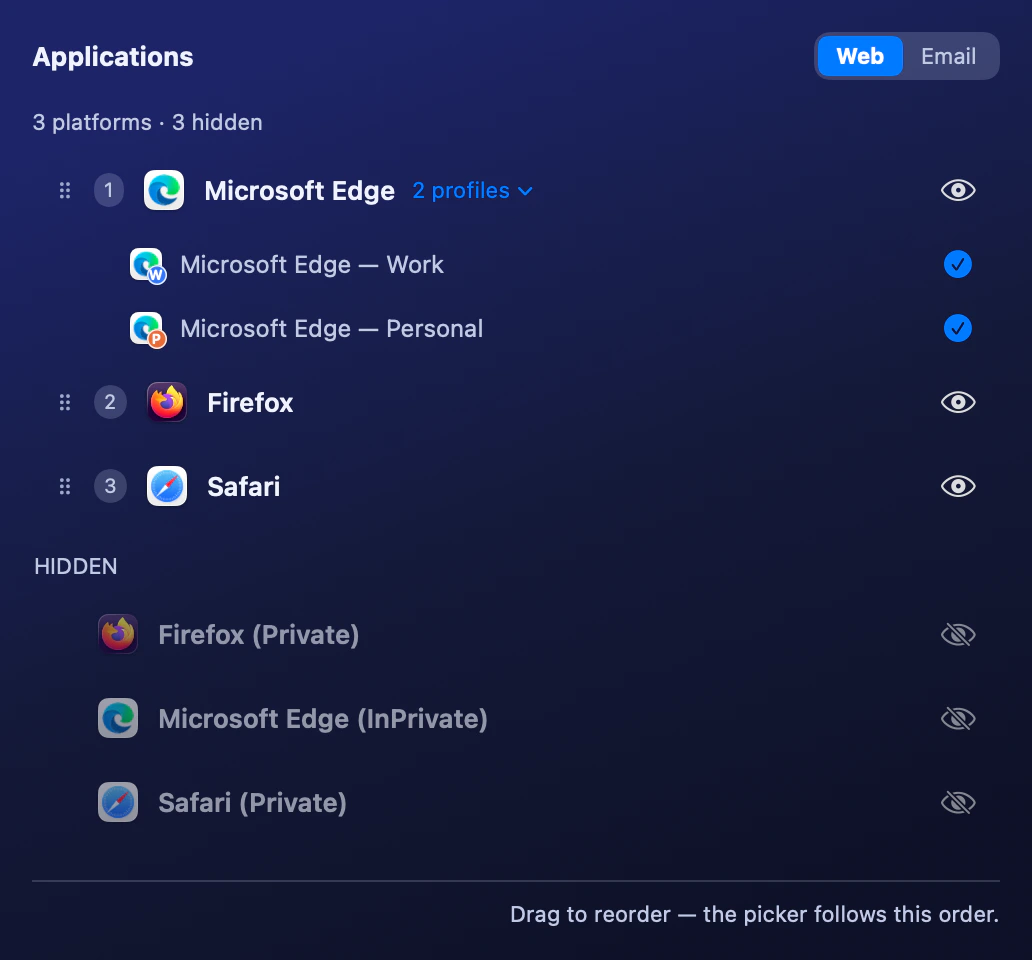
Edge’s Work and Personal profiles are separate destinations. Choose the named profile, not just Microsoft Edge. - Add one website rule. In Rules, enter the work site's hostname and choose the named Edge profile as the destination. For a pasted address with a path, use Whole site for the domain or Just this page for that exact address. Check the subdomain option rather than assuming related hosts are included.
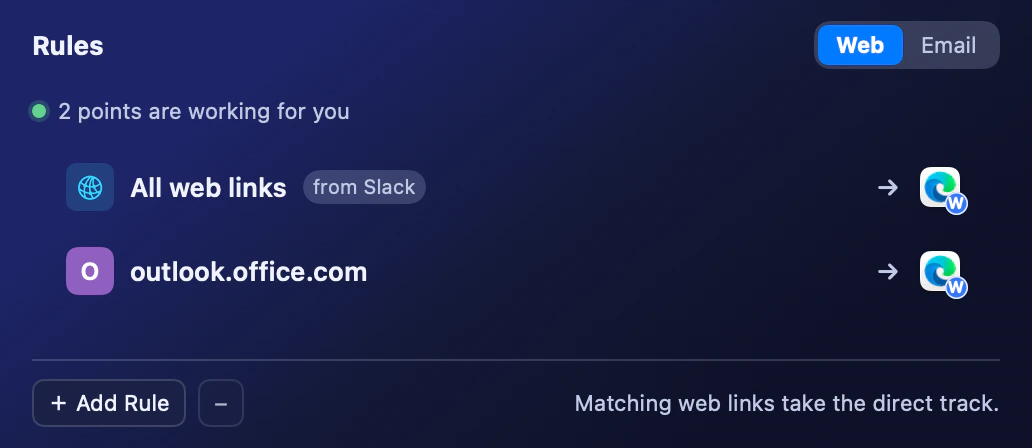
This example sends Outlook’s website to Edge Work. The separate Slack rule illustrates an optional source-app condition. - Optionally restrict the source. Keep Outlook or Teams running so it appears in the source-app options. Select it to narrow the website rule to links from that app. To route every web link from that app, leave the Website field empty and select the source and work-profile target.
- Test from the actual source app. Click a normal HTTPS link in Outlook or Teams, then inspect the profile that received it. Also test a personal link and a link from another app. Those checks reveal whether the rule is too broad before you add more destinations.
Pick a rule that matches your workflow
A domain rule is a good starting point for a company portal. Including subdomains covers hosts beneath that domain, not every service your employer uses. Add separate rules for unrelated hosts. A rule for your company domain will not automatically cover a document service on a different domain.
A source-only rule is broader: every HTTP or HTTPS link received from Outlook can go to work Edge, including personal links in messages. If that is not what you want, combine the source condition with a website. Exact-address rules suit one stable page; changing paths or query strings can make an exact rule stop matching.
More specific URL rules take precedence over a source-only catch-all. Within the same URL scope, a source-qualified rule takes precedence over one that applies from any app. If a result surprises you, inspect existing exact-address and domain rules before rewriting the broader source rule.
Edge channels and other Chromium profiles
Switchman recognizes Edge, Edge Beta, Edge Dev and Edge Canary as separate profile catalogues. Choose the channel you actually use. A work profile in stable Edge is not a profile in Edge Beta, even if both have the same display name.
Brave and Vivaldi profiles are supported too, including Brave Beta and Nightly and Vivaldi Snapshot. Chrome has its own Chrome profile setup guide. Profile support does not imply identical private-window support across those channels; the two destination lists are separate.
Limits and troubleshooting
If a profile is missing, first check that it belongs to the installed Edge channel and that Edge has at least two profiles in its normal local data directory. Switchman reads profile names from the browser's Local State file. An unreadable file or a custom data location can prevent discovery; there is no manual profile-import step.
If the selected profile is deleted or opening it fails, Switchman opens the link in the parent browser and shows a notice. That preserves access to the link, but it is not a guarantee that the work account received it. Check the profile before entering credentials, and edit the rule after replacing a profile.
Source-app matching has a cold-start limit. Switchman identifies the source from the frontmost app when the link arrives; the first link after a reboot may not have a usable source. A domain-only rule avoids depending on source detection. Finally, these rules cover web links delivered to Switchman, not every Teams or Outlook action, custom app link, or navigation inside an existing browser tab.
FAQ
Is Edge profile routing free?
No. Saving rules to Edge profiles and adding profile destinations to the picker require Switchman Pro. The ordinary browser picker and rules targeting a browser application are part of the free routing core.
Can Outlook and Teams links open in my Edge work profile?
Yes, when they are HTTP or HTTPS links delivered to Switchman. Use a website rule, a source-app condition, or both. Source detection may be unavailable on the first link after a cold start.
Does this work with Edge Beta, Dev and Canary?
Yes. Switchman reads separate profile catalogues for Edge, Edge Beta, Edge Dev and Edge Canary. Select the destination under the channel that contains your work profile.
Does Switchman replace Edge Automatic Profile Switching?
No. Edge has its own default-profile and automatic-switching options. Switchman adds rules that can choose among different browsers and named profiles before opening an external link.
Related guides
- Open links in a specific Chrome profile
- Open links in a specific Arc Space
- Open Slack links in a different browser
Switchman is free for its routing core. See what Pro adds or return to the Mac browser chooser homepage.