Open Slack links in a different browser on Mac
To open Slack links in a different browser on Mac, make Switchman your default browser and create a rule for links clicked in Slack. Choose Chrome, Safari or another installed browser as the destination. The same approach works for web links from Mail, Teams, Zoom and Notes when those apps hand the link to macOS.
This separates two decisions that macOS normally treats as one: where a link came from, and which browser should open it. Your system default becomes Switchman; your rules decide the browser after that. Source-app routing is part of the free routing core, and Switchman runs on macOS 13 or later.
Set up a Slack source-app rule
- Install Switchman and make it the default browser. Keep it running while you test. Links must reach Switchman before it can choose a destination.
- Open Slack before opening the rule editor. The source-app list offers running apps. An app already named by a saved rule stays available after it quits, but opening Slack makes it easy to choose for a new rule.
- Add a web rule in Settings → Rules. Leave the Website field empty if you want every web link from Slack covered. Choose your browser in the destination menu.
- Set “Only when the link is clicked in” to Slack. An empty Website field plus a selected source app means every web link from that app. Save the rule.
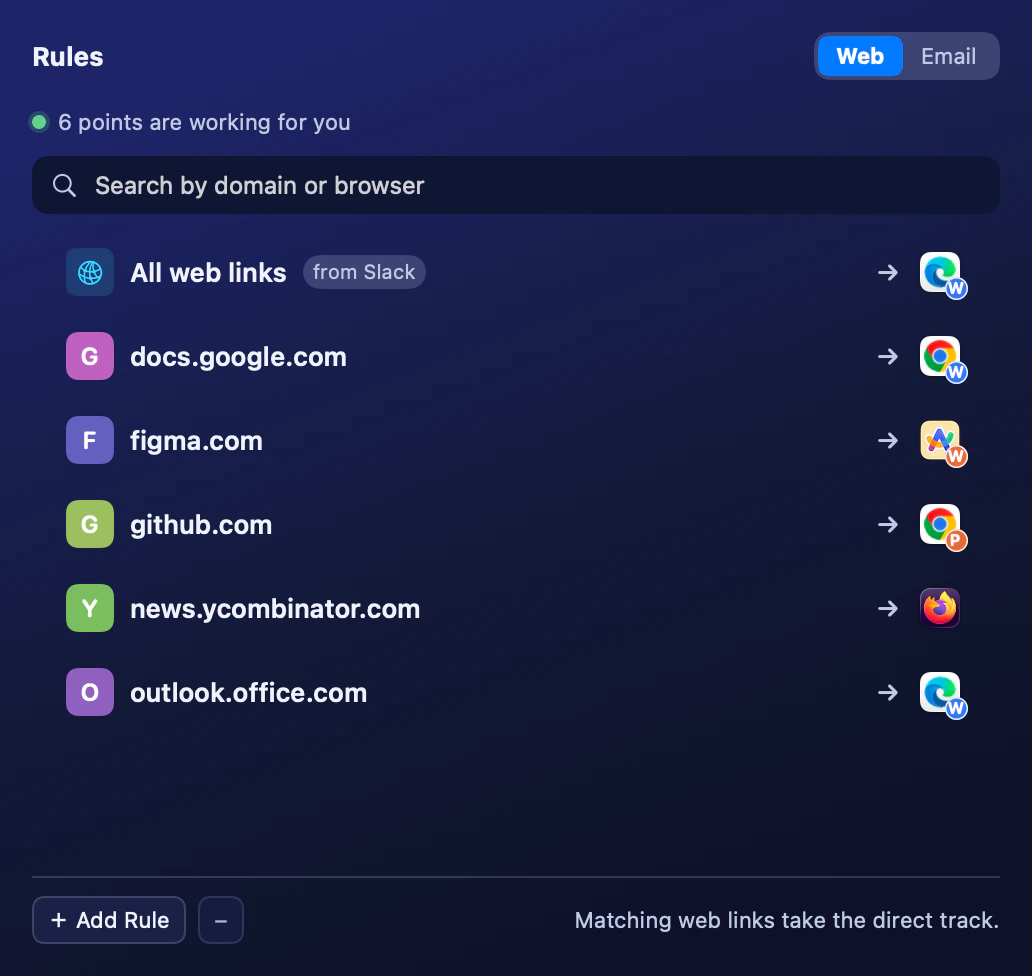
The saved source rule reads “All web links” with “from Slack.” This example’s destination is Edge Work, a Pro profile target. - Test the same address in two apps. Click it in Slack, then in Notes or Mail. Slack should use your chosen browser; the other app should follow its own matching rule or the unmatched-link setting.
If you only want one site from Slack to use Chrome, enter that domain instead of leaving Website empty. For example, a rule for your company’s document site can be restricted to Slack without sending every personal article shared in a channel to your work browser.
What macOS can and cannot do natively
System Settings lets you choose one default web browser. It does not provide a built-in rule list saying “Slack uses Chrome, Mail uses Safari, Notes asks me.” Changing the system default changes the ordinary destination for all apps that use it, not just Slack.
An individual app may offer its own browser preference or open links inside an embedded view. That is an app-level choice, not a general macOS routing system. If Slack or Teams opens a link internally or sends it directly to a particular browser, Switchman never receives that click. Check the source app’s link-opening settings before changing rules that are already correct.
Useful rules for Mail, Teams, Zoom and Notes
Use the source app to describe your working context. Slack and Teams might send web links to the browser where you are signed into work accounts. Mail might send ordinary web links to Safari. Notes can remain undecided, with a picker when no rule matches.
Zoom is another possible source for web links clicked in its app. This does not mean every meeting action is a browser link: app-specific schemes and internal navigation are outside a web-browser rule. Similarly, a web link in Mail is different from a mailto: link, which asks to compose an email rather than visit a page.
A browser rule does not move accounts or sign you into a service. Choose a browser whose existing sessions suit the links you are opening. If work and personal accounts live in separate Chrome Profiles rather than separate browsers, Profile routing is a separate Pro capability; the source-app condition itself remains free.
Why a site rule can override your Slack rule
Rules are not simply applied in the order you added them. A rule naming a particular address or domain is more specific than “every web link from Slack.” If you already route a site to Safari, adding a blanket Slack-to-Chrome rule does not take that site over.
To make a deliberate exception, add a rule for the same site with Slack as its source and Chrome as its destination. Within the same link scope, the source-qualified rule wins over the rule for any app. This lets “this site normally uses Safari, but from Slack use Chrome” coexist without deleting either decision.
Command-clicking a browser in the picker is not a shortcut for creating a Slack-only rule. It remembers a site-wide choice, including subdomains, without a source condition. Use the Rules editor when the originating app matters.
Honest limits and troubleshooting
macOS delivers the URL without a reliable source-app label. Switchman reads the frontmost app immediately when the link arrives, before presenting its picker. The rule compares the app’s bundle identifier, not its visible name.
There is a cold-start caveat. If macOS launches Switchman to deliver the first link after a reboot, the clicking app may no longer be frontmost when the delegate runs. Source-app rules are therefore a strong preference, not a first-link guarantee. If the source cannot be identified, rules requiring it do not match; other applicable rules and the unmatched-link setting still decide the destination.
If a match fails, keep Switchman running and try an ordinary external web link from the source app again. Check that the app is selected in the rule, then inspect more specific site rules. If the target browser was uninstalled, its rule is skipped rather than sending the link to a missing app.
A safety warning can also explain an unexpected picker. Free checks for suspicious address shapes run before automatic routing. They show a reason and force the picker; they do not block the link or certify other links as safe.
FAQ
Can I open all Slack links in Chrome without changing Mail?
Yes, for web links Slack hands to macOS. Create a web rule with an empty Website field, Slack as the source app, and Chrome as the destination. Mail follows its own rules or the unmatched-link setting.
Is source-app routing a Pro feature?
No. Source-app rules targeting ordinary browsers are part of the free routing core. Chromium Profile and Arc Space destinations require Pro, which costs $9.90 once.
Why did the first Slack link after a reboot miss my rule?
Source detection uses the frontmost app when the link arrives. During a cold start, that may not still be Slack. If the source is unknown, source-qualified rules do not match; other rules or the unmatched-link setting apply.
Does Command-click remember the source app too?
No. Command-click in the web picker remembers the site, including subdomains, without a source condition. Add or edit the source condition in Settings → Rules.
Related guides
- Choose a browser for each link on Mac
- Open links in a specific Chrome Profile
- Remove tracking parameters from links
Switchman is free for its routing core. See what Pro adds or return to the Mac browser chooser homepage.